 KeepSuite
Themes, colors and ribbon layout
Find light and dark colors, Black & Gray, and document designs.
Updated 21 October 2026 · Steps describe the prepared Windows apps. Options vary by document mode.
Choose app colors
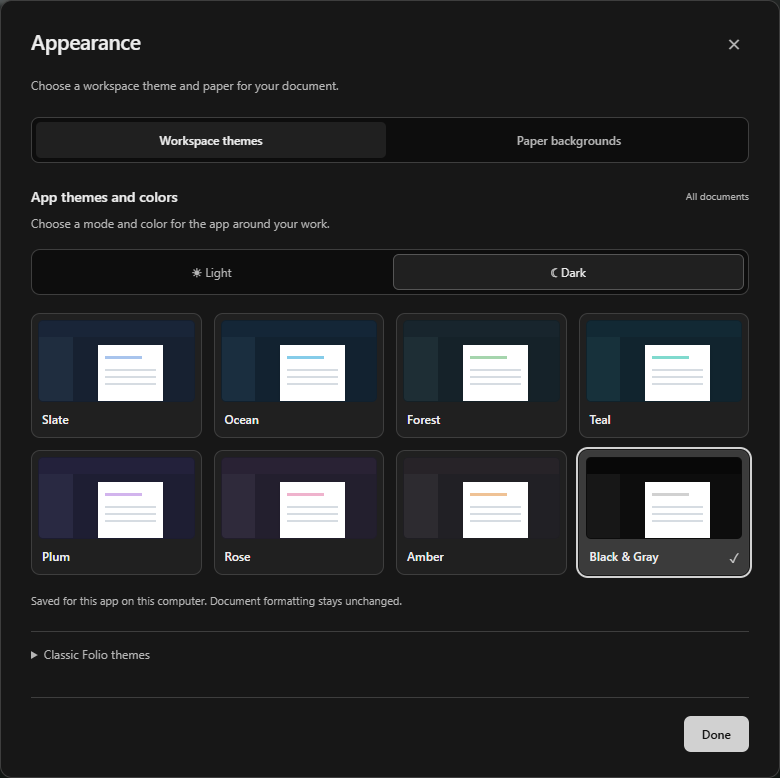
- Click Theme beside the Ribbon control near the top right of any app.
- Choose Light or Dark.
- Choose Slate, Ocean, Forest, Teal, Plum, Rose, Amber or Graphite. The dark Graphite option is labeled Black & Gray.
- The choice takes effect immediately and is remembered separately for Folio, Ledger and Stage.
Other places to find app appearance
- Folio: Design → Workspace theme, or View → Themes & paper.
- Ledger: Review → App themes.
- Stage: Design → App appearance.
Folio’s older workspace looks remain under Classic Folio themes. There are eight paired color families in the new chooser; app themes do not recolor your document, worksheet cells or slide objects.
Make more room for your work
Click Ribbon to choose Full ribbon, Compact ribbon or Tabs only. In Tabs only mode, choosing an editing tab shows its tools again.
- Ctrl+F1: show or hide the ribbon.
- Ctrl+Alt+K: switch between full and compact tools.
- Ctrl + mouse wheel: zoom the document, sheet or slide.
Ribbon density and app colors are saved as workspace preferences. They are not document formatting.
Style the actual work
Choose Folio → Design → Themes for a decorative document, Ledger → Home → Table styles for a selected cell range, or Stage → Design → Themes for slide designs.
These tools change the work itself. Unlike app themes, their supported colors and designs may be included in exported documents. Keep a native backup before applying a design across a large file.
Still need a hand?
Email support@hcus.llc with the app name and a brief description.
← All help guides